Dashboard
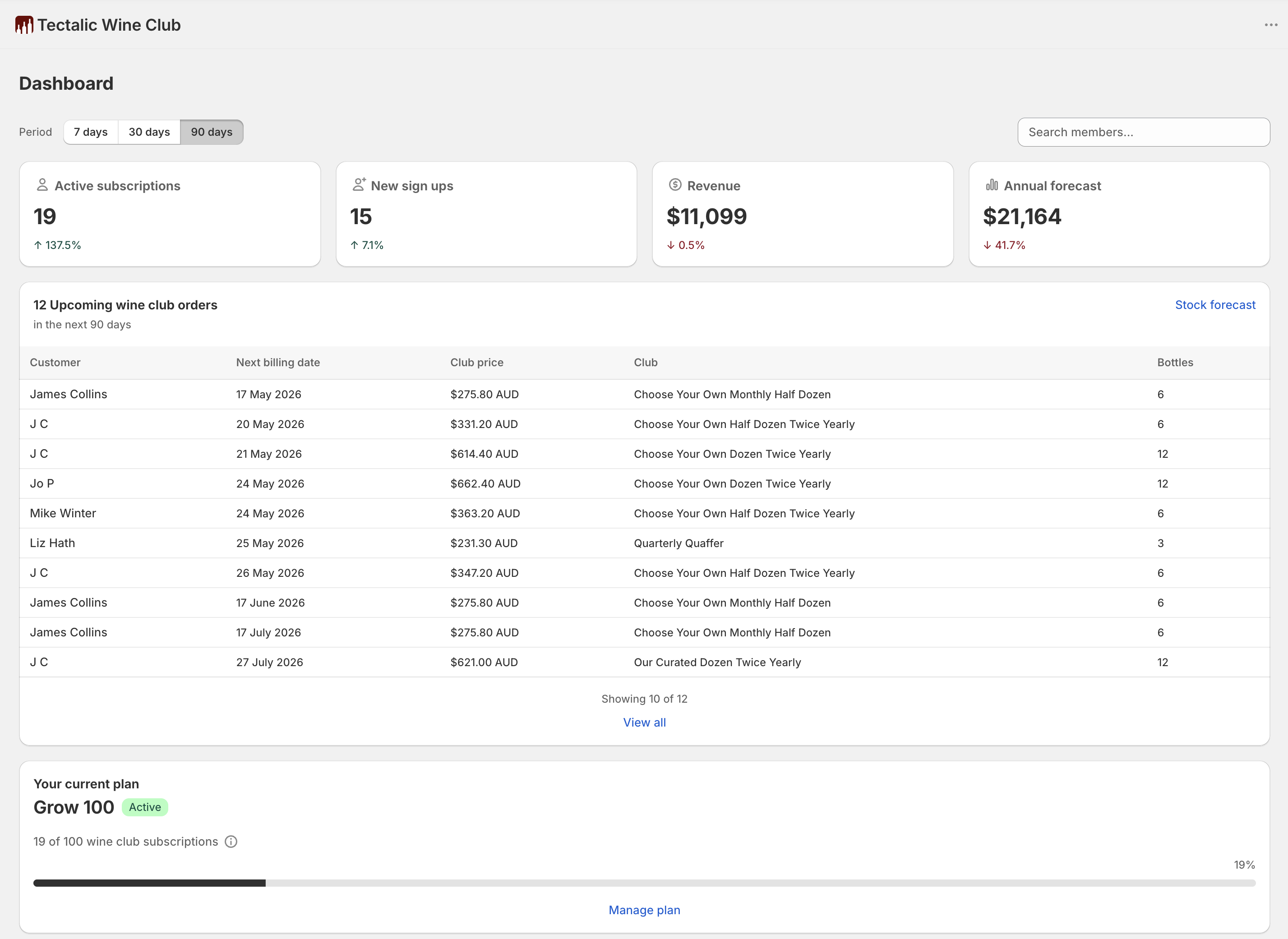
The dashboard is the first screen you see when you open the Tectalic Wine Club app. It gives you an at-a-glance overview of your wine club performance and quick access to common tasks.
Period selector
A segmented button above the stats cards lets you choose a time window of 7 days, 30 days, 90 days, 6 months, or 12 months. Changing the period updates the Active subscriptions, New sign ups, and Revenue cards, as well as the upcoming orders table. Hover any stat card title to see the exact date range the figure covers.
Search
A search box at the top of the dashboard finds wine club subscribers by name, email address, or club name. Submitting takes you to the subscriptions list with the term applied. It's the quickest way to find a specific member from a cold start — useful at the cellar door, on the phone, or when you don't already have the subscriptions list open.
Statistics
Four cards at the top of the dashboard show key wine club metrics: Active subscriptions, New sign ups, Revenue, and Annual forecast. Hover the card title for more detail. Each card includes a trend indicator when prior period data is available.
Multi-currency revenue
If your store has subscriptions in multiple currencies, revenue amounts are converted to your shop's base currency using exchange rates from recent orders. An asterisk and tooltip indicate when currency conversion is included.
Upcoming wine club orders
A table showing upcoming orders due in the selected period. Each row includes:
- Customer name
- Next billing date
- Club price in the customer's currency
- Club name
- Bottles count
If an upcoming order has an issue (such as a missing payment method or email delivery problem), its row is highlighted in orange with a warning icon — the same indicators shown on the subscriptions list. Click the row to open the subscription and resolve the issue.
Click any row to open that subscription's detail page. The table shows up to 10 orders — click View all in the footer to see the full list on the subscriptions page.
Stock Forecast
The stock forecast helps you plan inventory for upcoming wine club orders. Open it by clicking Stock forecast in the upcoming orders table header.
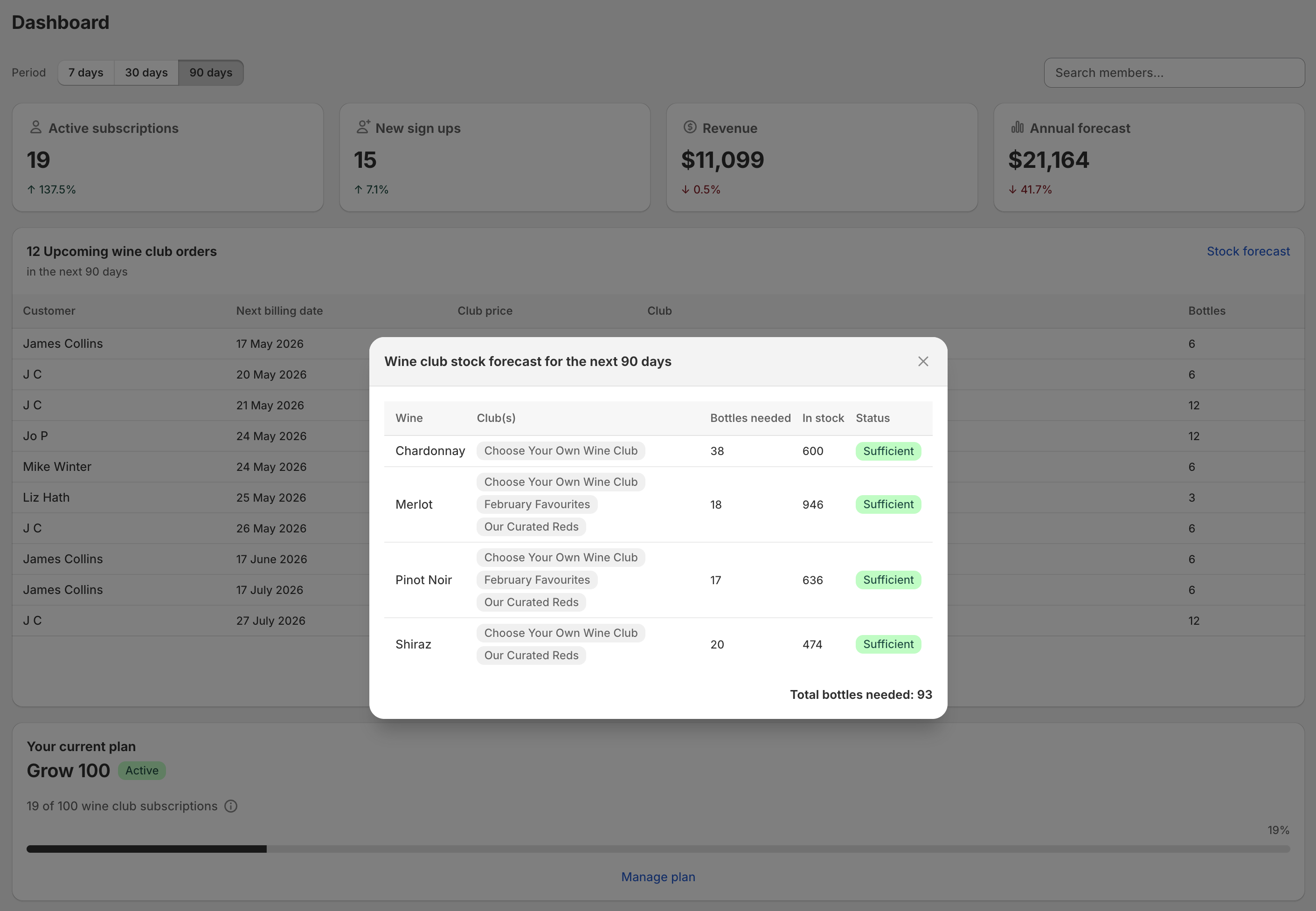
The forecast shows a table of every product variant needed for upcoming orders, with columns for:
| Column | Description |
|---|---|
| Wine | Product name and variant |
| Club(s) | Which clubs need this product |
| Bottles needed | Total quantity required across all upcoming orders |
| In stock | Current Shopify inventory level |
| Status | Sufficient or Low — flagged as low when inventory is less than twice the bottles needed |
The stock forecast uses the same period as the dashboard — 7 days, 30 days, 90 days, 6 months, or 12 months.
Stock across multiple locations
The In stock figure is your total Shopify inventory for the variant across all locations. If you stock wines in more than one location, this total may not reflect availability at the specific location an order is routed to. See Multiple inventory locations.
Plan ahead
Use the 12-month view to plan purchasing and production well ahead of time, especially before busy periods.
Resume wizard banner
If you started creating a club with the setup wizard but didn't finish, a banner appears at the top of the dashboard so you can pick up where you left off. Click Resume to continue, or Discard to start fresh. The banner disappears once you finish or discard the draft.
Setup guide
If you're still getting started, a collapsible setup guide appears at the top of the dashboard tracking your progress through four key steps:
- Create your first wine club — Set up a club with frequencies, case sizes, and products
- Add the signup widget — Add the Member Signup block to your landing page theme template
- Add the customer portal — Enable the subscription management portal in your customer accounts
- Get your first customer — Promote your wine club and launch
Each step shows a checkmark when completed, with a progress indicator (e.g., "2 of 4 completed"). Once all steps are done, the guide automatically collapses. You can dismiss it at any time.
Your current plan
The dashboard shows your current billing plan under Your current plan, with:
- Plan name and status badge
- Subscription count and capacity bar showing usage against your plan limit
- Manage plan button to go to billing settings
Upgrade prompts
When your subscription count approaches or exceeds your plan limit, a banner appears recommending an upgrade. If you're over your plan limit, the banner changes to indicate that an upgrade is required. Click the upgrade button to go to billing settings.
Help and resources
At the bottom of the dashboard you'll find links to:
- What's new — See the latest app updates
- Documentation — Browse these docs
- Contact support — Get in touch with the support team
Plus quick-reference cards linking to key documentation topics: importing subscriptions, cellar door sign-ups, club types, subscription management, customer emails, and order fulfillment.